
Device setup guide
How to Setup IPTV on Smart TV
This guide shows how to setup IPTV on Smart TV: you install a player app from the TV’s own app store and then add the login you chose at checkout. It covers Samsung (Tizen), LG (webOS) and Android TV or Google TV, and says plainly what to do when your TV does not offer a suitable app.
Editorial review: 29 October 2026, against Samsung’s and LG’s own support pages. We have not tested these steps on every TV model, so menu names on your TV may differ.
Before you start
What You Need Before You Setup IPTV on a Smart TV
Have these ready, on the TV or on a phone beside you.
Your connection details
Your connection details will be provided after your order has been processed. Keep them where you can copy them exactly.
Your login type
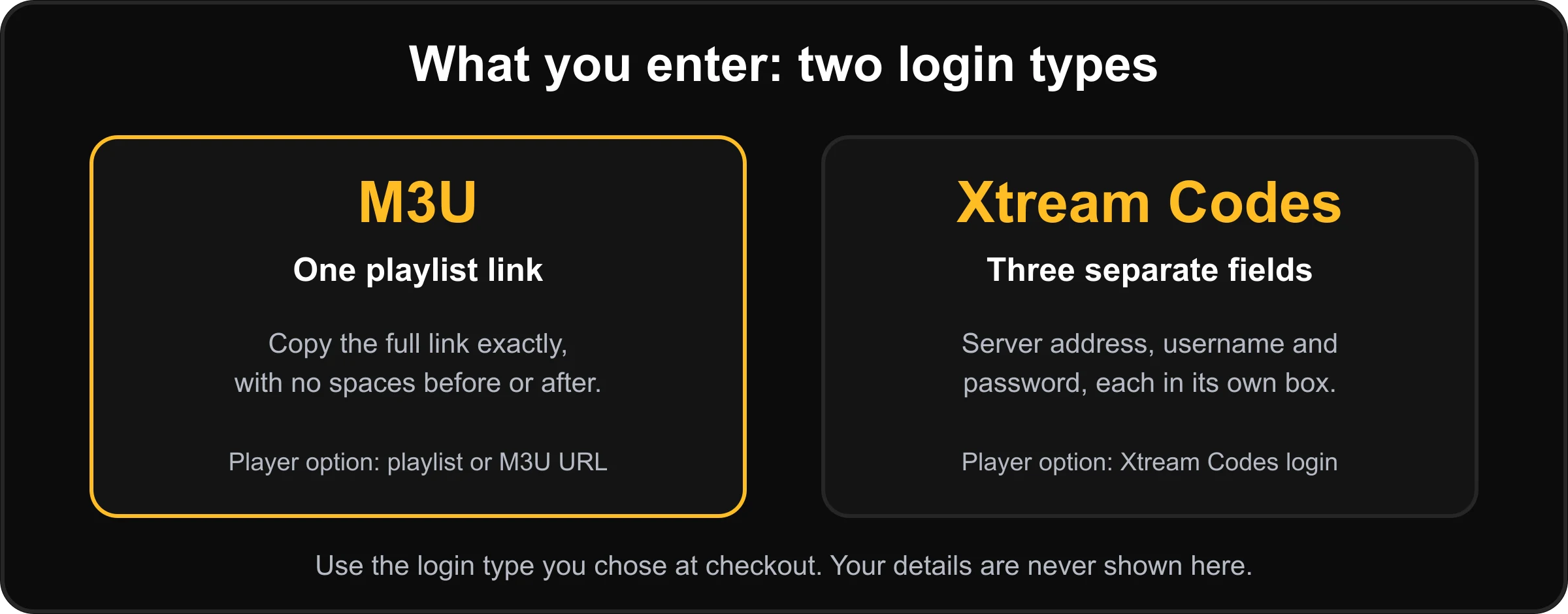
At checkout you choose M3U (one playlist link) or Xtream Codes (server address, username and password). Use the same type in the player.
A stable connection
The TV needs a steady connection to download the app and to stream. A wired connection is usually steadier than Wi-Fi.
Step 1
How to Setup IPTV on Smart TV: Which Smart TV Do You Have?
The steps for how to setup IPTV on Smart TV, and our preferred player, depend on the platform. Open Settings on the TV, or check its box, if you are not sure which one you have.
Samsung (Tizen)
Samsung’s Smart Hub. Preferred player: HOT Player. Alternative: IBO Player. Samsung steps ↓
LG (webOS)
LG’s Content Store. Preferred player: HOT Player. Alternative: IBO Player. LG steps ↓
Android TV and Google TV
Preferred player: TiviMate. Alternative: HOT Player. Android and Google TV steps ↓
Players
Recommended IPTV Players by TV Type
Before you learn how to setup IPTV on Smart TV, choose a player. These are the player apps we prefer. They are third-party apps, so availability depends on your TV model, software version and country. Always confirm on the app’s own store listing.
Player licences
Some player apps ask for a licence or activation from their developer. That licence is separate from your streaming subscription, is not provided by us, and its terms and price are set by the developer. Check the app’s store listing or website for current terms, and never send your connection details to a site you do not trust.
TiviMate and legacy apps
TiviMate is an Android application, so it is for Android TV, Google TV and other Android-based devices, not for Samsung or LG TVs. Legacy note: IPTV Smarters Pro is no longer one of our recommended players and this guide has no steps for it. If you already use it, enter the same M3U or Xtream details the way that app asks.
Samsung (Tizen)
How to Setup IPTV on Smart TV: Samsung (Tizen)
Steps follow Samsung’s own instructions for installing apps on a Samsung TV in Canada.
Sign in to your Samsung account
Smart Hub needs a signed-in Samsung account to open or download apps. If you skipped sign-in during setup, select Set Up Now on the Smart Hub Home screen.
Open Search
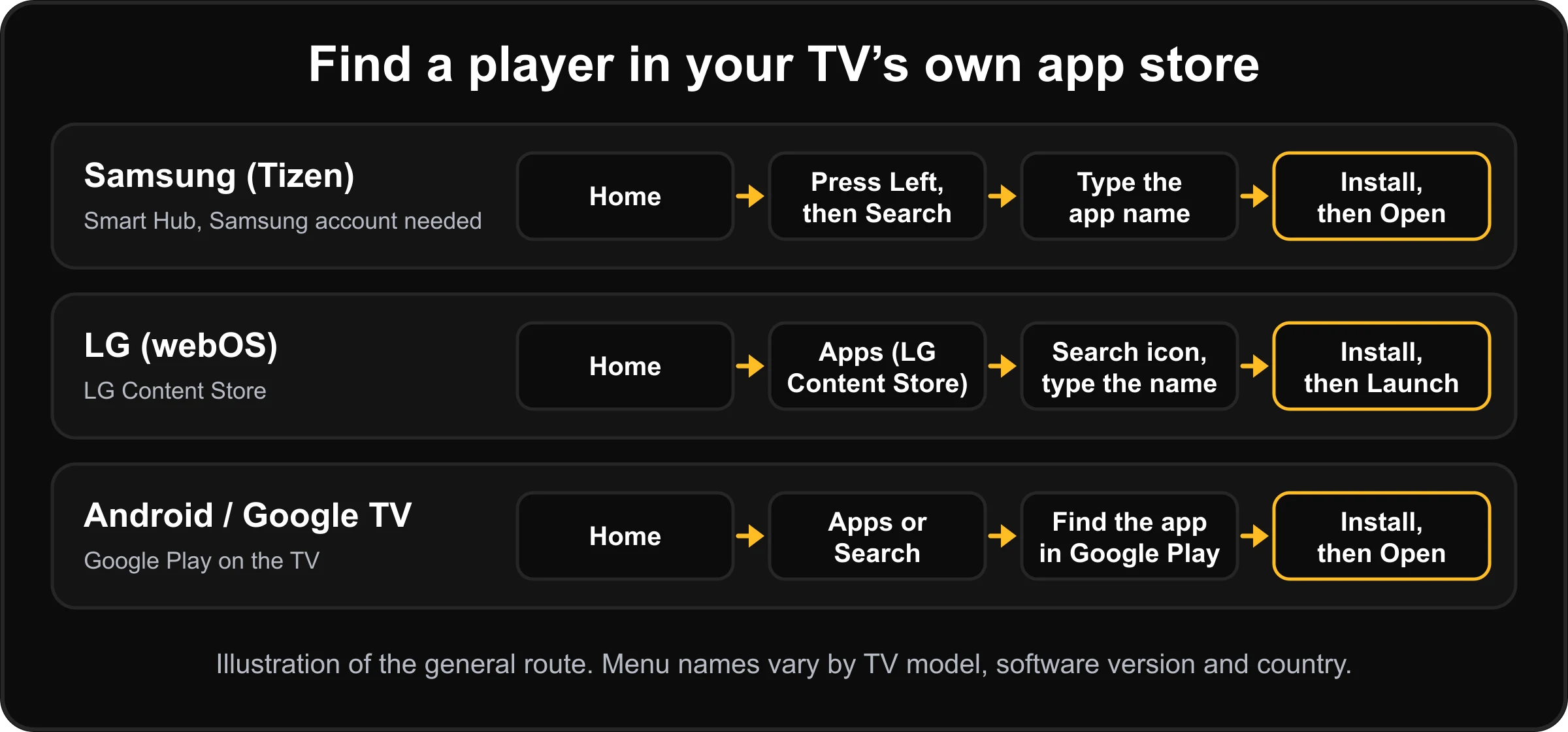
On the Home screen, press Left on the remote to open the menu on the left, then select Search.
Search for HOT Player
Type HOT Player with the on-screen keyboard and select it in the results.
Install and open
Select Install. When the download finishes, select Open. Choose Add to Home first if you want the app to stay on your Home screen.
Not in the results?
Samsung says an app that does not appear in search is likely not compatible with your TV model, which is more common on older TVs. Search for IBO Player instead. If neither appears, use an external device (see below).
Add your login
Open the player and follow the section on adding your login.
LG (webOS)
How to Setup IPTV on Smart TV: LG (webOS)
Steps follow LG Canada’s own instructions for installing apps from the LG Content Store.
Open the LG Content Store
Press the Home button on the remote and select Apps from the options at the bottom of the Home menu.
Search for HOT Player
Select the search icon in the upper-right corner of the store, type HOT Player and select Search.
Install and open
Select the app in the results, choose Install, and open it when the installation finishes.
Not in the results?
LG says available categories vary by country and service status. Search for IBO Player instead. If neither appears, use an external device (see below).
Add your login
Open the player and follow the section on adding your login. If the store asks you to sign in to an LG account, follow its prompts.
Android TV and Google TV
How to Setup IPTV on Smart TV: Android TV and Google TV
These TVs use the Google Play store. Menu names differ between Android TV and Google TV versions, so follow what your screen shows.
Open the app store
From the Home screen, open Apps or Search and go to the Google Play store on the TV.
Install TiviMate
Search for TiviMate, select it, choose Install and open it when it finishes. Check the developer name on the listing first.
Add a playlist
In TiviMate, add a playlist and choose the login type that matches the one you chose at checkout (M3U playlist or Xtream Codes).
TiviMate not available?
Search for HOT Player instead, install it from the same store and follow its own add-playlist screen.
Step 3
Add Your Login in the Player
Every player has its own screens, so this guide does not show app screenshots. Once you know how to setup IPTV on Smart TV, adding your login follows the same idea in every player.
- Add a new playlist or user.
- Choose M3U or Xtream Codes, the same type you chose at checkout.
- Check which login types your player accepts. If a player accepts only one, choose that type when you order.
- Paste or type your details exactly, with no spaces before or after.
- Save, then wait while the channel list loads.
Connections and devices are different
The checkout lets you select 1 to 5 simultaneous connections; one is included and the cost of extra ones is shown before you pay. A connection is a screen streaming at the same moment. How many devices have the app installed is a separate matter, decided by the app and its store, not by this website. If you plan to use one login on several TVs, tell us before you order.
If the app is missing
If Your Smart TV Has No Suitable App
Samsung’s own support page suggests an external device, such as a media player or a compatible TV box, for apps your TV cannot run. If your TV has an HDMI input, you can do the same.
Firestick and Fire TV
For Fire TV devices that run Fire OS. Check your model first.
Android TV and boxes
For Android TV, Google TV and Android boxes.
Apple TV
For Apple TV with the App Store.
If something goes wrong
Smart TV IPTV Troubleshooting
If you are stuck on how to setup IPTV on Smart TV, check these in order before reinstalling anything.
The app is not in the store
Update the TV software, check the country setting, try the alternative player, then use an external device.
The login is rejected
Check the login type matches your order, copy the details again, and remove spaces. An M3U link must be complete.
No channels appear
Wait for the first load, save the playlist again, restart the app, and confirm the TV is online.
The app asks for activation
That is a licence from the app’s developer, separate from your subscription. Read the app’s own terms.
Playback stutters
See the buffering and freezing guide.
Still stuck
Message us with your order number, the TV brand and the player you used. Contact us.
Questions
Smart TV IPTV Questions and Answers
Do I need a Firestick or an extra box for my Smart TV?
Not if your TV can install a suitable player from its own app store. If it cannot, an external device connected to an HDMI input is the fallback. See the section on TVs without a suitable app.
How to setup IPTV on Smart TV: which player should I use on a Samsung or LG TV?
Our preferred player is HOT Player, with IBO Player as the alternative. They are third-party apps, so confirm that each one appears in your TV’s store for your model and country before you plan around it.
Can I use TiviMate on a Samsung or LG TV?
No. TiviMate is an Android application. It is meant for Android TV, Google TV and other Android-based devices, not for Samsung or LG TVs.
Should I choose M3U or Xtream Codes?
You choose when you order. M3U is one playlist link. Xtream Codes is a server address, a username and a password. Use the same type in the player. Not every player accepts both types, so check the player’s own listing first. If you are not sure which suits your app, ask us before you order.
Do the player apps cost extra?
Some player apps ask for a licence or activation from their developer. That licence is separate from your streaming subscription, is not provided by us, and its terms and price are set by the developer. Check the app’s store listing or website for current terms.
How many TVs can I watch on at once?
The checkout lets you select 1 to 5 simultaneous connections. One is included and the extra cost of more is shown before you pay. A connection is a screen streaming at the same moment, so it is not the same as the number of devices that have the app installed.
Are MAG boxes supported?
No. MAG boxes are not supported.
Sources
Official Sources Used for This Guide
Checked on 29 October 2026. These are the vendors’ own pages; menus and availability can change.
Keep going
More Setup Help
All device setup guides
Pick another device from the installation hub.
Buffering and freezing
Fix playback problems once you are set up.
What is IPTV?
A plain explanation of how it works.
Questions and answers
Ordering, payment and devices.
Roku
Screen mirroring and AirPlay options.
Formuler
MYTVOnline setup for Formuler boxes.