
Why Does IPTV Buffer or Freeze?
Buffering happens when a video player does not receive enough data in time to continue playback smoothly. The player may pause briefly while it waits for additional video data.
A single buffering event does not automatically mean your Internet connection is bad. Several parts of the streaming chain can influence playback.
Your Home Network
- Weak Wi-Fi signal
- Network congestion
- Router problems
- Too many active devices
Your Streaming Setup
- Slow or overloaded device
- Player or app problems
- Temporary service issues
- Problems affecting one specific stream
The important point is to diagnose the problem before changing several settings at once. A structured test usually makes the cause much easier to identify.
IPTV Buffering Fix: Start With These Quick Steps
Before changing advanced network settings, try the simplest checks first. Many temporary streaming problems disappear after restarting the affected equipment.
Restart the streaming device
Close the streaming application and restart the television, streaming box, computer or mobile device. This clears temporary processes and gives the player a fresh start.
Restart your router
Restart your home router using its normal power controls. Allow the network to reconnect completely before testing playback again.
Test another stream
Check whether the problem affects only one channel or program. If several unrelated streams work normally, the issue may not be your entire home network.
Test another device
If possible, use another compatible device on the same network. This can help determine whether the original device is contributing to the issue.
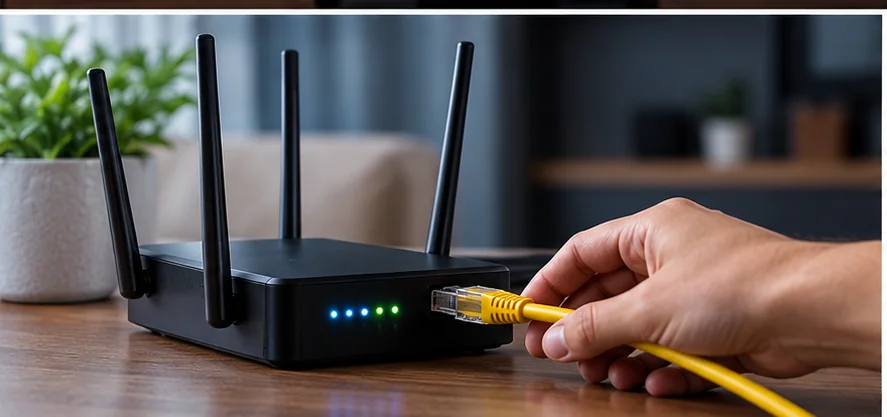
Compare Wi-Fi and Ethernet
When your device supports a wired Ethernet connection, testing it can help reveal whether Wi-Fi quality is the main bottleneck.
Check Your Internet Connection Before Blaming IPTV
A reliable Internet connection is important for any form of online video. However, a speed test alone does not tell the entire story.
A connection can show a high headline speed while still experiencing temporary drops, Wi-Fi interference or local congestion.
Run a Test on the Same Device or Network
When troubleshooting, test the connection as close as possible to the device experiencing the problem. A phone beside the router may show excellent performance while a television several rooms away receives a much weaker Wi-Fi signal.
Repeat the test at different times if the problem is intermittent. You are looking for consistency, not just one impressive result.
Check Other Internet Activity
Large downloads, cloud backups, online gaming, video calls and several simultaneous streams can all use network capacity.
If buffering disappears when other heavy Internet activity stops, network congestion inside the home may be contributing to the problem.
Wi-Fi vs Ethernet for an IPTV Buffering Fix
Wi-Fi is convenient, but its performance depends on distance, walls, interference and the position of the router.
A wired Ethernet connection removes many of those wireless variables. That makes Ethernet especially useful as a troubleshooting test.
If playback is unstable over Wi-Fi but works normally through a wired connection, the problem is more likely related to wireless coverage or interference than the stream itself.
You do not have to permanently switch every device to Ethernet. A temporary wired test can simply help you identify whether Wi-Fi is the part of the connection that needs attention.
Restart and Check Your Router
Your router connects devices throughout the home and can influence streaming stability. A temporary router problem may affect multiple devices at the same time.
Restarting the router is one of the first troubleshooting steps because it can clear temporary connection problems without changing your network configuration.
Router Placement Matters
For Wi-Fi devices, placement can make a noticeable difference. A router hidden in a cabinet or located far from the television may provide weaker coverage than one placed in a more open and central location.
Try to reduce obvious physical obstacles between the router and the streaming device when practical.
Check Whether Everything Is Slow
If phones, laptops and televisions all become unstable at the same time, the problem is less likely to be limited to one streaming device.
That pattern points more strongly toward the router, local network or Internet connection.
Check the Device When IPTV Keeps Freezing
Sometimes the network is working normally but the device itself is struggling. Older or heavily loaded devices can behave differently from newer hardware on the same connection.
Restart the Device
A full restart can clear temporary memory and application problems. Simply leaving an app and opening it again is not always the same as restarting the device.
Close Unnecessary Applications
If the device is running several applications or background tasks, closing unnecessary processes may improve overall responsiveness.
Keep the Device and Player Updated
Use the normal update system provided by the device manufacturer and the official app store used by your device. Updates can contain stability, compatibility and security improvements.
If you need help with supported device setup, visit our IPTV installation guides.
Does Buffering Affect One Channel or Everything?
This is one of the most useful troubleshooting questions. If only one channel or one piece of content freezes while several others play normally, your entire Internet connection may not be the cause.
If nearly every stream is affected on multiple devices, the home network or Internet connection becomes a stronger suspect.
| What You Observe | What to Check Next |
|---|---|
| Only one stream freezes | Test other content before changing your home network. |
| Everything freezes on one device | Restart and test the affected device. |
| Everything freezes on multiple devices | Check router, Wi-Fi and Internet stability. |
| Wi-Fi freezes but Ethernet works | Investigate wireless signal quality and router placement. |
| Problems appear only occasionally | Note the time and compare network activity when it happens. |
Why Streaming Can Slow Down During Busy Times
Network demand changes throughout the day. Inside your home, multiple people may be streaming, gaming, downloading files or using video calls at the same time.
That does not automatically mean you need a new Internet plan. First determine whether other heavy activity is happening when buffering starts.
If problems occur mainly while several household devices are heavily using the connection, reducing unnecessary background traffic can be a useful diagnostic test.
For broader Internet troubleshooting, Google also provides general guidance for diagnosing Wi-Fi and connectivity problems through its official support documentation.
Check the Streaming Player or App
A streaming app can occasionally become unstable even when the network is functioning normally. If the same service works on another supported device, the original app or device deserves closer attention.
Start by completely closing the player and reopening it. If the problem continues, restart the device.
Use only the normal update method provided by the device manufacturer or official app store. Avoid changing unrelated settings unless you know they are relevant to the problem.
If a lawful provider recommends a specific supported player, follow that provider’s official setup instructions rather than random configuration guides from unknown sources.
How to Identify the Real Cause of IPTV Buffering
A good IPTV buffering fix comes from isolating one variable at a time. Changing the router, app, device and network settings all at once makes it harder to discover what actually solved the issue.
Use this order:
- Test more than one channel or program.
- Restart the streaming device.
- Restart the router.
- Test another device on the same network.
- Compare Wi-Fi with Ethernet when available.
- Check whether other household activity is using the connection.
- Check whether the service reports a temporary problem.
This process separates device-specific problems from network-wide problems much faster than randomly changing settings.
How to Reduce IPTV Buffering in the Future
After identifying the cause, a few basic habits can reduce the chance of the same issue returning.
- Keep your streaming device and approved player updated through official update channels.
- Place the router where it can provide better coverage to devices that depend on Wi-Fi.
- Use Ethernet for fixed devices when a wired connection is practical and appropriate.
- Avoid unnecessary heavy downloads while troubleshooting live streaming.
- Restart equipment when a temporary network problem appears.
- Keep track of whether buffering affects one stream, one device or the entire household network.
The goal of an IPTV buffering fix is not simply to make the loading symbol disappear once. It is to identify the bottleneck so you know what to check if the problem happens again.
Need Help Setting Up Your Device?
If your connection is working correctly but you still need help with a supported device, visit our installation hub for device-specific setup guides.
Frequently Asked Questions About IPTV Buffering
What is the best IPTV buffering fix?
The best IPTV buffering fix depends on the cause. Restart the device and router first, test several streams, check another device and compare Wi-Fi with Ethernet when possible. These tests help identify whether the issue is related to the network, device or a specific stream.
Why does IPTV keep freezing even with fast Internet?
Headline Internet speed is only one factor. Wi-Fi interference, temporary connection drops, device performance, local network congestion or a problem affecting one stream can also interrupt playback.
Is Ethernet better than Wi-Fi for IPTV?
Ethernet removes many wireless variables such as distance and interference, so it can provide a more consistent connection for a fixed device. It is also useful as a troubleshooting test when Wi-Fi playback is unstable.
Why does only one IPTV channel buffer?
If several other channels or programs work normally, the issue may be limited to that particular stream rather than your entire home Internet connection.
Should I restart my router when IPTV freezes?
Yes, restarting the router is a reasonable early troubleshooting step for temporary connectivity problems. After the network reconnects, test the stream again before changing additional settings.
Can the streaming device cause buffering?
Yes. A device can become slow or unstable because of temporary software problems, background processes or limited resources. Restarting it and using current official software can help determine whether the device is part of the problem.
Why does IPTV buffer more when several people are online?
Several simultaneous downloads, video calls, games and streams can increase traffic on the household network. Test again when other heavy activity is reduced to see whether local congestion is contributing to the problem.
How can I prevent IPTV buffering from coming back?
Maintain a stable home network, keep supported devices updated, use strong Wi-Fi coverage or Ethernet where practical, and diagnose whether future problems affect one stream, one device or the entire network before making changes.